Blogfield notes
Slack Automated Message Guide That Saves Hours
You open Slack to three reminders, a support escalation, a sales update, and an alert from a system nobody has checked yet. By the time you've copied the right details into Jira, tagged the owner, and asked for approval, the morning's gone. A well designed Slack automated message
You open Slack to three reminders, a support escalation, a sales update, and an alert from a system nobody has checked yet. By the time you've copied the right details into Jira, tagged the owner, and asked for approval, the morning's gone. A well-designed Slack automated message changes that flow by putting the right context in the channel where work already happens, instead of making people chase every update across tabs.
Table of Contents
- Why Slack Automated Messages Have Become Essential
- Choosing the Right Way to Automate in Slack
- How to Create Your First Slack Automated Messages
- Ready to Use Templates for Standups Alerts and Onboarding
- Permissions Rate Limits and Governance You Cannot Ignore
- Troubleshooting Tips and Your Next Automation Win
Why Slack Automated Messages Have Become Essential
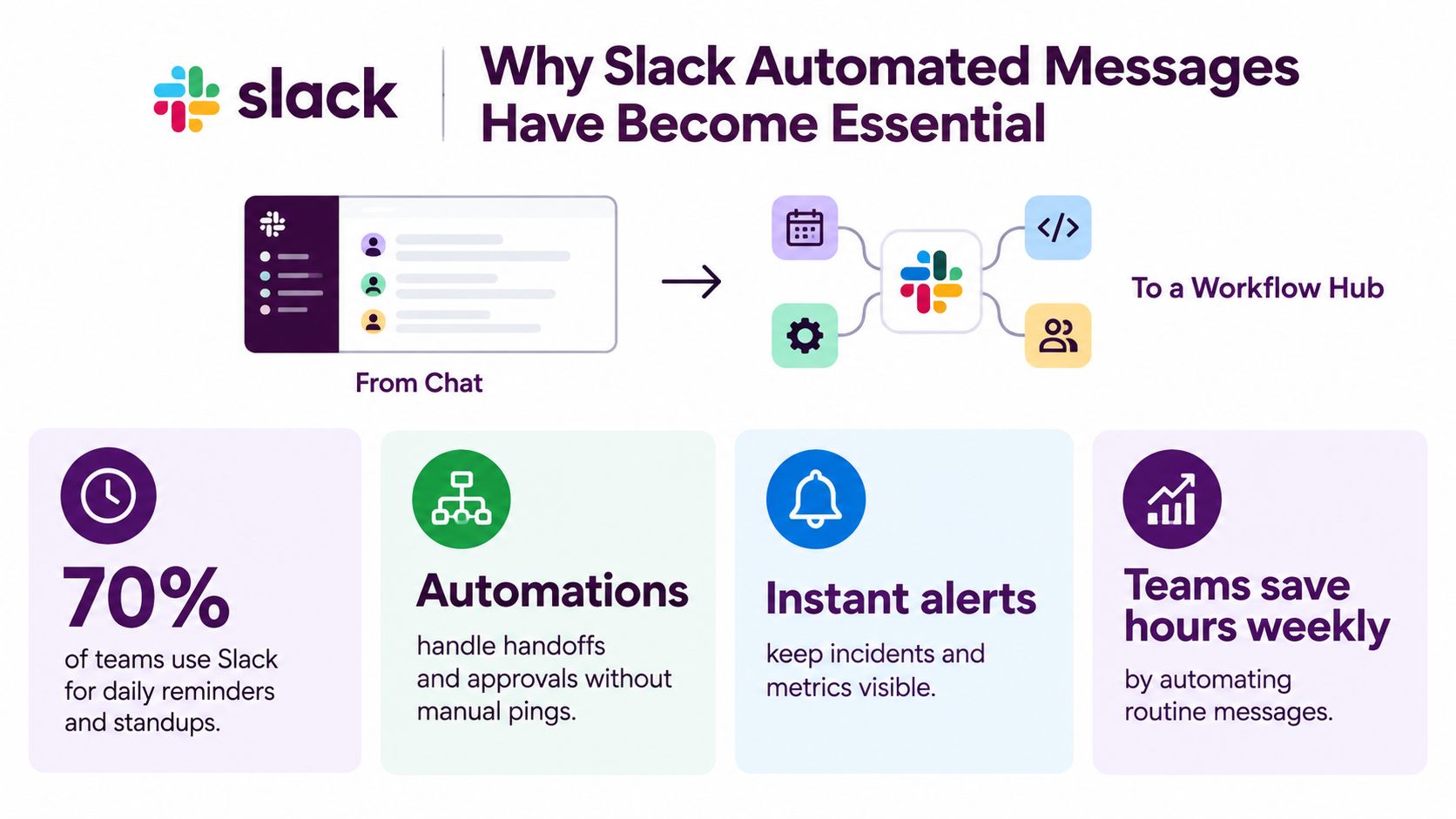
Slack started as a place for conversation. In practice, it's become a workflow hub where teams handle standups, approvals, incident coordination, customer handoffs, and operational updates. That shift matters because a message can now be the visible end of a process that began in HubSpot, Jira, Stripe, GitHub, or an internal database.
Slack's automation ecosystem reflects that role. One industry summary reports that automation saves an average of 5.6 hours per employee per week, while teams have deployed more than 750,000 custom integrations across Slack workspaces. The same summary says over 65% of enterprise clients use custom-built internal bots for automation and data pulls, and Slack connects with 2,400+ apps and services. Those figures come from Slack integration statistics, and they help explain why automated messages work best as an operating layer across tools, not as isolated reminders.
The practical dividing line is simple. Automate work that is repeatable, time-sensitive, and easy to express, such as a daily prompt, a failed payment alert, or a handoff when a deal changes stage. Keep judgment-heavy work manual until the team has defined the decision, owner, and approval path.
Slack's scale also changes the stakes. A 2026 industry dataset reports that Slack is used by over 1 million organizations worldwide, with enterprise adoption at 45% and mid-market adoption at 49%. It also reports Enterprise Grid usage among large enterprises with more than 1,000 employees at 55-64%, while another estimate places Slack usage at 77% of Fortune 100 companies and reports more than 200,000 paid customer accounts. See the Slack usage and adoption data for the underlying estimates.
For a simple reminder, use Slack's native commands. For a structured trigger and response, use Workflow Builder. For cross-tool events, connect an app or bot. For work that needs context, decisions, and actions across systems, consider an AI coworker, such as Frida, that can operate from a Slack thread. Teams evaluating the broader automation layer can also review this Vision platform for internal tools for ideas on moving repetitive work out of manual queues.
Choosing the Right Way to Automate in Slack
The wrong automation method usually creates unnecessary maintenance. A founder might connect a bot to send a message that /remind could handle, while an engineering team might try to force a multi-system approval process into Workflow Builder. Pick the smallest tool that can reliably complete the job.
| Method | Best For | Effort | Limitation |
|---|---|---|---|
/remind | Personal prompts, recurring channel reminders, simple follow-ups | Low | Doesn't understand external system state |
| Workflow Builder | Keyword-triggered responses, forms, lightweight internal workflows | Low to medium | Limited for complex cross-tool logic and permissions |
| Apps and bots | Alerts from Jira, GitHub, PagerDuty, CRM systems, or custom services | Medium to high | Requires configuration, credentials, monitoring, and rate-limit handling |
| AI coworker | Multi-step requests across tools, summaries, triage, and thread-based follow-up | Medium | Needs explicit access rules, review controls, and a clear action boundary |
Use native Slack features for predictable work
/remind wins when the message doesn't depend on live data. “Remind me in this channel every Monday to review the pipeline” is a good native task. It's fast, visible, and doesn't need an integration owner.
Workflow Builder fits when the trigger is inside Slack. A keyword such as “new hire” can return a prepared checklist, collect answers through a form, or route a request to a channel. Slack's workflow automation guide is useful when you're deciding whether a native workflow is enough.
Use apps and bots when another system owns the event
A bot should notify Slack when something meaningful happens elsewhere, such as a production incident, a new support priority, or a deal reaching a defined stage. The source system should remain the system of record. Slack should carry the context and next action, not become an untracked duplicate database.
Use an AI coworker only when the job needs context
An AI coworker makes sense when someone might ask, “Check the latest customer activity, compare it with the contract, summarize the risk, and update the owner.” That's more than message delivery. It involves reading across tools, interpreting information, and possibly writing back. The added flexibility is valuable, but it also makes governance part of the design from the beginning.
How to Create Your First Slack Automated Messages
Start with a low-risk workflow. You're testing message timing, channel fit, wording, and ownership before you connect anything that can change a customer record or operational system.
Start with /remind
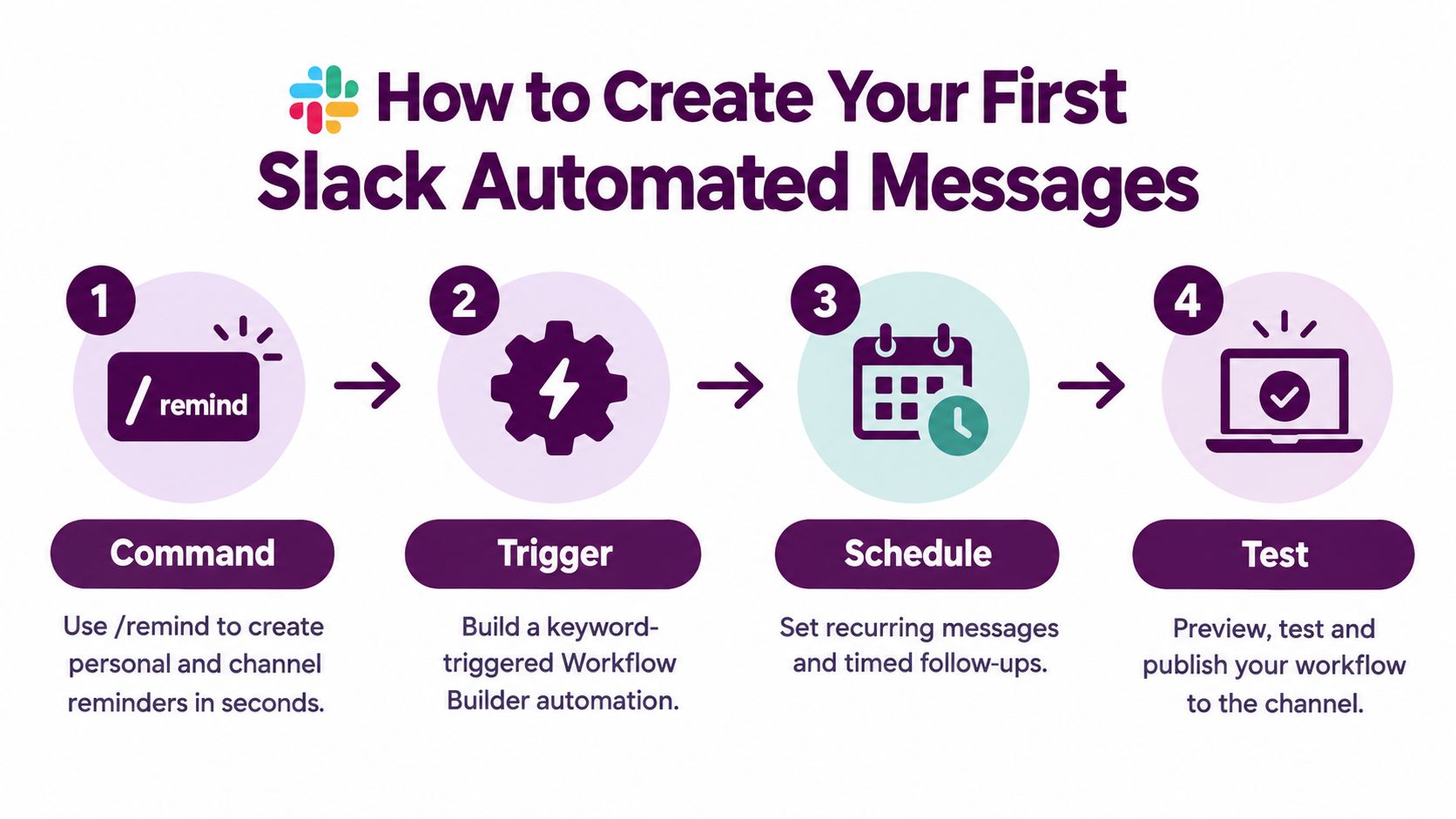
In Slack, type /remind and choose the person or channel that should receive the message. Add the text and schedule in plain language.
Examples:
/remind me to review open support escalations every weekday at 9am/remind #sales-ops to update forecast notes every Friday at 3pm/remind @alex to confirm the launch checklist tomorrow at 10am
Keep the wording operational. “Review escalations” is weaker than “Review unassigned priority tickets and post the owner in the thread.” The second version tells the recipient what completion looks like.
Build a keyword workflow
Open Tools, select Workflow Builder, and create a workflow with a trigger such as a keyword or phrase. Choose a phrase people already use, not one they'll need to memorize. “Customer escalation” is usually more reliable than an internal abbreviation.
Add a response that includes the destination, owner, and next action. For example:
Customer escalation: Please add the account name, severity, customer impact, and ticket link. Support owns the first response. Tag the on-call lead only if the issue is blocking service.
Test the trigger in a private channel or with a narrow audience. Broad keyword triggers often fire on harmless conversation, which teaches people to ignore the workflow.
Connect an app or bot
For an external event, create a Slack app or use the source platform's integration. A custom service can send messages through an incoming webhook or Slack's chat.postMessage method. Use a stable channel destination, a clear message title, and a link back to the system of record.
A useful alert has this shape:
What happened: Payment retry failed for a customer
Where to act: Stripe record and support ticket
Owner: Billing operations
Next action: Confirm retry status and contact the customer if the next attempt fails
Don't send every field returned by the API. Slack users need enough information to decide what to do, not a raw event dump.
Ask an AI coworker to handle cross-tool work
For a more involved task, write the request in the Slack channel or thread and specify the source systems, output, and boundaries. For example: “Review today's overdue HubSpot deals, compare them with recent Gmail activity, summarize the risks in this thread, and draft follow-up messages. Don't update deal stages without approval.”
That final sentence matters. It separates research and drafting from mutation.
A short walkthrough can help teams visualize the native setup before they connect external systems.
<iframe width="100%" style="aspect-ratio: 16 / 9;" src="https://www.youtube.com/embed/1BUg3d4qt1w" frameborder="0" allow="autoplay; encrypted-media" allowfullscreen></iframe>Ready to Use Templates for Standups Alerts and Onboarding
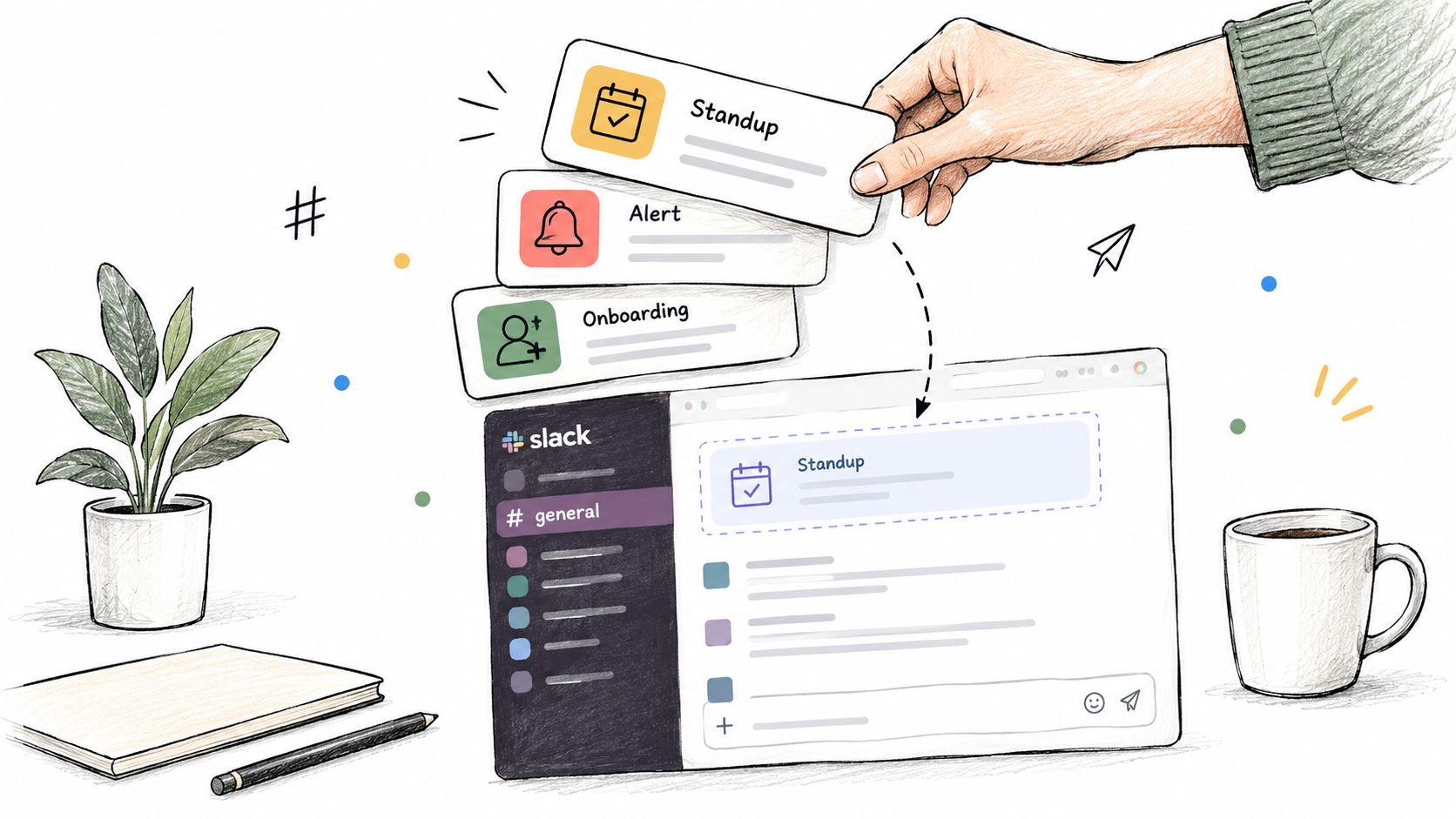
Good templates make the expected behavior obvious. Every message should name the trigger, audience, channel, and next action. That structure keeps an automated message useful after the novelty wears off.
Daily standup
Trigger: Weekday schedule
Audience: Engineering team
Channel: #team-engineering
Message: “Standup check-in. Post yesterday's progress, today's focus, and anything blocked. Link tickets where possible.”
Outcome: Everyone gets a consistent prompt without a manager sending manual pings.
For teams that need a more personal start to the day, a structured morning briefing workflow can combine priorities and updates instead of creating another isolated reminder.
Incident alert
Trigger: PagerDuty incident opens or monitoring crosses a defined threshold
Audience: On-call team
Channel: Incident channel
Message: “Incident opened. Service: [service]. Severity: [severity]. Started: [time]. Monitor: [link]. Current owner: [name]. Next action: acknowledge and post the first update in this thread.”
Outcome: The alert gives responders a location, owner, and immediate action.
Reserve direct mentions for people who need to respond. Routine monitoring belongs in a focused channel, not in everyone's main workspace.
Onboarding nudge
Trigger: New hire start date or checklist item due
Audience: New hire and assigned buddy
Channel: Private onboarding channel or direct message
Message: “Today's onboarding task: connect your development account, review the access policy, and reply with any missing permissions. Buddy: [name]. Checklist: [link].”
Outcome: The new hire sees the task in context, while the buddy knows where to help.
Deal and invoice follow-up
Trigger: Deal or invoice enters a follow-up state in HubSpot or Stripe
Audience: Account owner or billing operations
Channel: Topic-specific operations channel
Message: “Follow-up needed. Account: [name]. Item: [deal or invoice]. Status: [status]. Last activity: [date]. Next action: [action]. Record: [link].”
Outcome: The owner can act without asking someone to look up the record first.
Weekly summary
Trigger: Weekly schedule
Audience: Leadership or functional team
Channel: Relevant summary channel
Message: “Weekly summary. Wins: [links]. Open risks: [items]. Decisions needed: [items]. Owners and due dates: [list]. Source records: [links].”
Outcome: The summary supports decisions instead of becoming a pile of disconnected notifications.
Permissions Rate Limits and Governance You Cannot Ignore
The biggest automation failure isn't always a broken webhook. It's a workflow that can read sensitive information, write to business systems, and act under a vague identity without a review step.
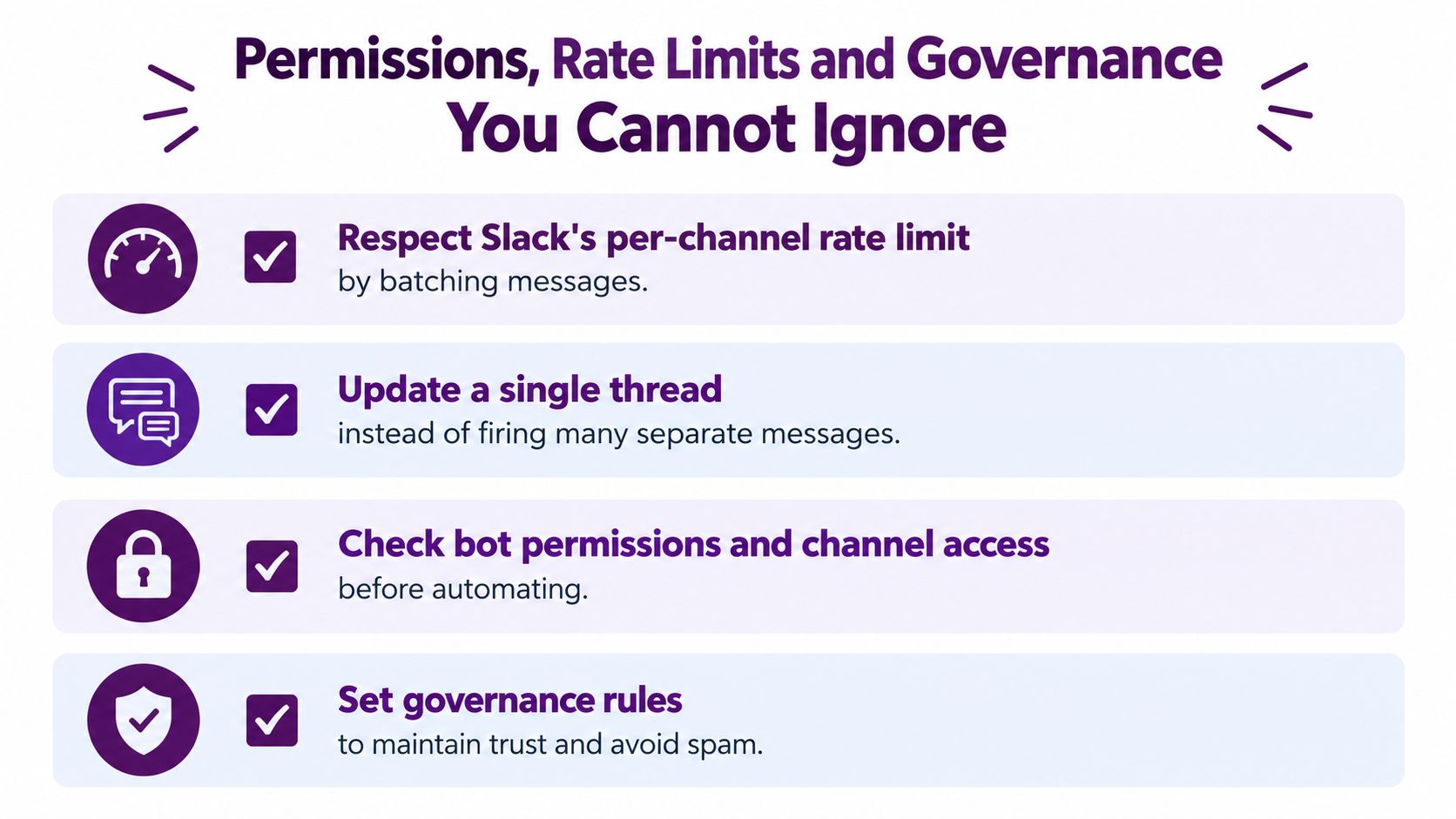
Slack apps may post no more than one message per second per channel, whether they use chat.postMessage, incoming webhooks, or another sending path. Slack may tolerate short bursts, but it doesn't guarantee that excess messages will be stored or displayed, according to this Slack message automation guidance. Batch alerts, stagger sequential posts with a delay of about 1.1 seconds, or update one thread instead of creating near-duplicate messages.
Practical rule: One useful summary beats a stream of individual events. Keep the
textfield populated even when you use Block Kit, so push notifications, unfurls, and accessibility remain useful.
Alert quality needs discipline. A useful alert is actionable, focused, unique, real, and urgent. If a message doesn't tell someone what changed or what they should do, it's probably a dashboard update, not an alert.
Separate reading from writing
A bot that can inspect Salesforce should not automatically be able to edit Salesforce. Use separate read and write entitlements, require an approval preview before mutations, and record the requester, source data, proposed change, approver, and final result.
This matters even more when an AI coworker can update Jira, Confluence, or customer records. The Slack AI agent integration overview is relevant for teams assessing that operating model, but the principle applies to any connected agent. Treat Slack identity as a control boundary, not just a convenient way to send text.
Troubleshooting Tips and Your Next Automation Win
When a message doesn't fire, check the trigger phrase, workflow permissions, schedule, and destination channel first. Duplicate posts usually come from multiple active workflows or a retry loop. Permission errors point to a missing app scope or a bot that hasn't been invited to the channel. Dropped alerts often mean the automation is posting too quickly or sending too many separate messages.
Try one small build this week. Create a weekday standup reminder, test it in a focused channel, ask one teammate whether the wording leads to a clear action, and adjust before adding external data.
For operational monitoring, the same pattern applies to cost alerts and infrastructure events. A practical guide to cost anomaly detection for LLM can help you decide which signals deserve a Slack notification and which belong in a report.
Graduate to a bot or AI coworker when the message needs live data, cross-tool context, or a reply that completes work. Keep the automation quiet, useful, permissioned, and auditable.
Supercenter provides AI coworkers that live inside Slack, respond to mentions, and carry out work across connected business tools while replying in the relevant thread. Visit Supercenter to see how your team can turn a Slack request into a governed, cross-tool workflow.
- slack automated message
- slack workflow builder
- slack bots
- slack automation
- supercenter ai