Blogfield notes
Google Calendar Automation: A Practical Workflow Guide
At 8:47 on a Monday, the pain usually doesn't look technical. It looks like a RevOps lead sitting in Slack, watching one rep paste a meeting link into a Google Calendar invite, another copy account details from HubSpot by hand, and a third realize too late that the AE is already
At 8:47 on a Monday, the pain usually doesn't look technical. It looks like a RevOps lead sitting in Slack, watching one rep paste a meeting link into a Google Calendar invite, another copy account details from HubSpot by hand, and a third realize too late that the AE is already booked. Nobody calls that an architecture problem. They call it “just scheduling.”
That's why bad Google Calendar automation sneaks into teams. The first workflow works for one person, then sort of works for five, then starts dropping updates, duplicating events, and losing trust right when leadership asks for auditability. If your stack touches HubSpot, Slack, Gmail, Salesforce, or Outlook, calendar work stops being a personal productivity issue and turns into operational plumbing.
Google Calendar has been around long enough to become core infrastructure. It launched in beta on April 13, 2006 and reached general release in July 2009, with the iOS app arriving on March 10, 2015, and Google's Workspace reporting exposing metrics like 7-day and 30-day active users for Calendar inside enterprise environments (Google Workspace admin usage documentation). That history matters because the automation ecosystem around it is now big enough that the easy advice usually isn't the useful advice.
Table of Contents
- What Google Calendar Automation Really Solves
- The API Layer You Need Before Any Tool
- Choosing the Right Automation Stack
- Three Workflow Patterns That Actually Scale
- Trust, Permissions, and the Invite Attack Surface
- Error Handling and Reliability Patterns
- Adoption Checklist and Where AI Coworkers Fit
What Google Calendar Automation Really Solves
Google Calendar automation fixes repetitive coordination work. It handles the handoff from a CRM stage change to an actual invite, pushes reminders before a meeting slips everyone's mind, syncs internal and external events when multiple systems are involved, and catches obvious conflicts before a human sends the wrong time to a customer.
It does not fix weak process design. If your sales team changes deal stages late, if account ownership is messy, or if nobody agrees which system is source-of-truth for attendees, automating the calendar layer just makes the mess move faster.
What teams are usually trying to remove
Most requests fall into a few buckets:
- Booking handoff: A deal moves, a customer replies, or a Slack request appears, and someone needs an event created with the right title, attendees, link, and timezone.
- Follow-up work: A meeting changes, gets canceled, or wraps. The system should trigger reminders, post context, or prompt the owner to act.
- Cross-system sync: Google Calendar needs to stay aligned with Outlook, a CRM, a support queue, or a team calendar.
- Conflict checks: Before creating an event, the workflow should check whether the person is free.
The manual version fails in boring ways. People forget to add the right attendee. They update the event in one tool but not another. They assume “tentative” means “available.” Then leadership asks why the customer success handoff didn't happen on time, and the answer is buried in three tabs and a Slack thread.
Practical rule: Automate the transition between systems, not just the final event creation.
What good automation looks like in practice
A useful standard is simple. The workflow should survive more users, more calendars, and more scrutiny without becoming impossible to debug.
That means asking tougher questions than “can Zapier connect these apps?” Ask:
- Who owns the source of truth?
- What happens if the same trigger fires twice?
- Can someone audit who created or changed an event?
- Will the workflow keep working when usage spikes?
Google Calendar runs at huge scale. Third-party compilations in 2025 and 2026 report more than 500 million monthly users, with some collections also citing over 1.5 billion scheduled events per day and over 1 billion active users worldwide as of 2023. The same ecosystem summary also cites 2,000+ connected apps and notes API building blocks like free/busy endpoints (ZipDo Google Calendar statistics). The point isn't hype. It's that even a small flaw in your design gets amplified fast once calendar actions become part of normal business operations.
The API Layer You Need Before Any Tool
Before picking Zapier, Make, a custom service, or anything AI-shaped, get clear on the API layer. Every workflow sits on the same underlying mechanics, and most broken automations trace back to bad scope choices, wasteful polling, or quota-blind design.
Start with the narrowest access possible
A lot of teams over-scope on day one. They ask for full calendar access because it feels simpler, then spend the next quarter cleaning up governance questions.
Use the smallest permission set that still lets the workflow do its job:
| Scope or Endpoint | What It Unlocks | Quota or Limit |
|---|---|---|
calendar.events.readonly | Read event details without write access | Constrained by project and user quota windows documented by Google |
calendar.events | Create, update, and delete events | Subject to the same quota windows, so writes need throttling |
calendar.settings.readonly | Read calendar settings such as timezone-related config | Use only when settings are actually needed |
| Free/busy query | Check availability without reading full event payloads | Cheaper than full event reads for conflict checks |
| Incremental sync with sync tokens | Fetch only deltas after initial sync | Reduces repeated full-calendar reads |
| Watch channels | Push notifications when calendars change | Requires renewal because channels expire |
If your team needs a refresher on how OAuth flows behave in real integrations, this breakdown of OAuth examples is a useful sanity check before you ship anything user-facing.
Use the cheapest endpoint that answers the question
If all you need to know is whether someone is available, call free/busy. Don't pull full event payloads and parse them yourself. Full reads make sense when titles, attendees, or custom behavior matter. They are overkill for a simple scheduling gate.
Lightweight automations get sloppy. They keep re-fetching the same windows because that's easier than maintaining state. It works in testing. It burns quota in production.
Google's quota guidance is explicit. Design around a per-minute sliding window of 10,000 requests per minute per project, 600 requests per minute per user per project, and a 1,000,000 requests-per-day project limit, and use queueing, randomized timing, and incremental synchronization with sync tokens instead of repeated full syncs (Google Calendar API quota guidance).
Push beats polling, but only if you maintain it
Watch channels are useful because they let Google tell you when something changed instead of forcing you to poll constantly. But they add lifecycle work. If you don't renew channels on schedule, your “real-time” sync turns into stale data.
What usually works:
- Initial full sync: Pull the baseline calendar state once.
- Store sync tokens: Keep the last known token per calendar.
- Renew watch channels: Treat channel renewal like infrastructure, not an afterthought.
- Process deltas only: Pull changes since the last token, then advance state.
Most “Google Calendar is slow” complaints are really “our integration keeps asking expensive questions it already answered.”
Primary calendars, secondary calendars, and shared calendars also behave differently in practice. Teams often test against one primary calendar, then roll out to shared team calendars and discover pagination, ownership, and visibility issues that were always there. The right rule is boring and effective: pick the narrowest scope, the cheapest endpoint, and the cache strategy before you pick the tool.
Choosing the Right Automation Stack
There isn't one right stack for Google Calendar automation. There are trade-offs, and the wrong choice usually shows up later as either governance pain or debug pain.
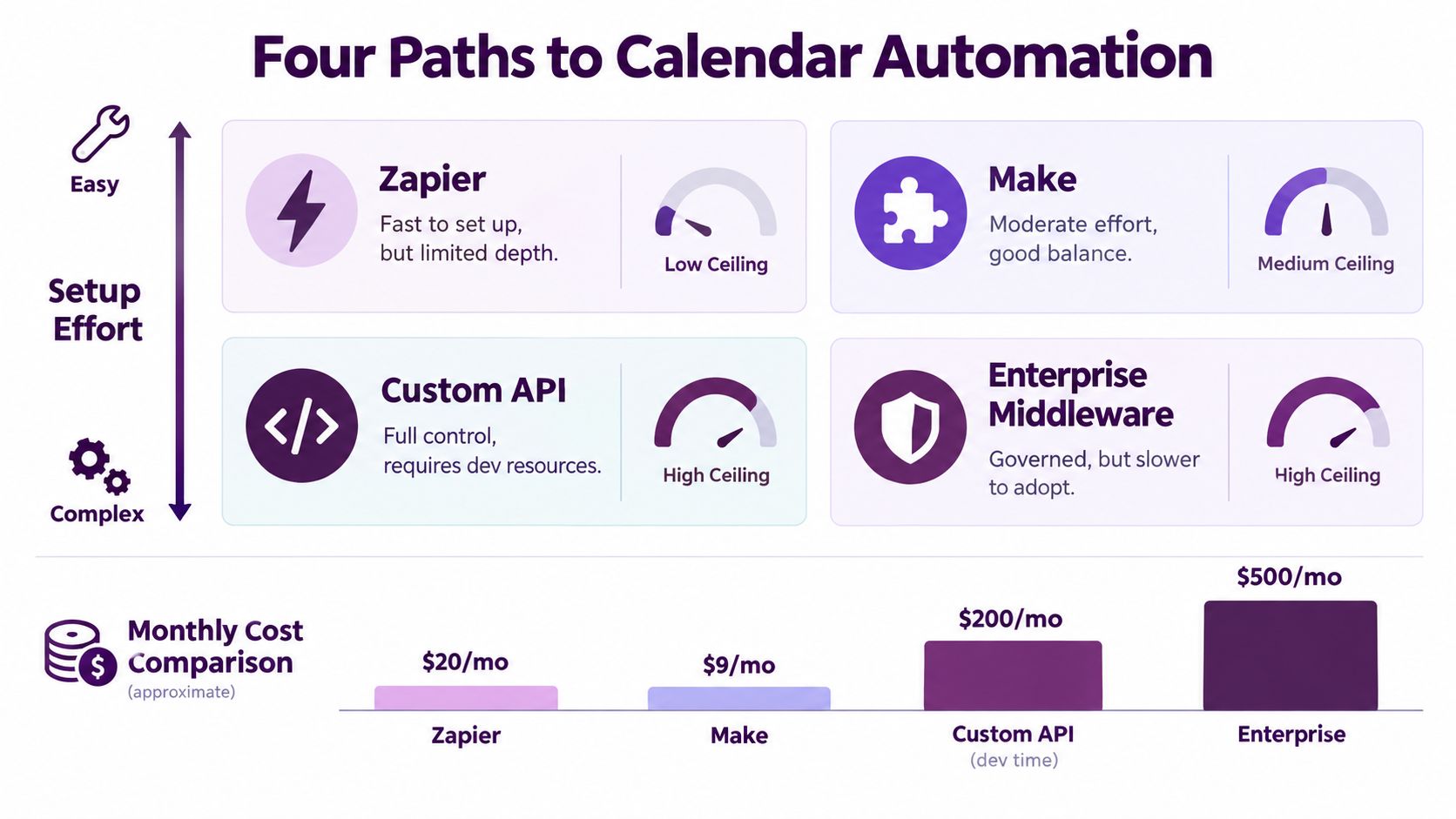
The four paths most teams consider
Zapier is the fastest way to stand something up. If you need “new HubSpot deal creates a Google Calendar event” for a small team, it's fine. The ceiling arrives when you need replayable logs, permission nuance, deduplication, or confidence about what happened when a trigger fires twice.
Make gives you more control over branching and data shaping. For operations teams, that can be enough. The downside is that it can still feel like a black box to IT once the scenario grows beyond a tidy visual flow.
A custom API service in Node or Python takes longer, but it gives you real logs, retries, queueing, and better scope control. If calendar writes affect customers or revenue, that control matters more than people think.
Enterprise middleware sits at the other end. It's slower to adopt, but it usually fits teams that care about governance, role boundaries, and central oversight more than speed of experimentation.
A lot of design work here overlaps with broader orchestration decisions. If your calendar workflow is one piece of a bigger cross-tool process, this guide to workflow orchestration tools helps frame where simple automations end and operational systems begin.
Choose based on failure mode, not demo quality
Here's the practical comparison your team needs:
- Small team, low risk: Zapier is acceptable.
- Ops-heavy team with branching logic: Make can be a decent middle ground.
- Engineering support available: Build a thin service around the Calendar API.
- High-governance environment: Use middleware or a governed internal integration layer.
For teams mapping work beyond calendar events alone, DOM Studio's workflow automation page is a helpful reference because it frames automation as process design, not just trigger wiring.
Where Slack-native AI coworkers fit
This is a separate category. A Slack-native AI coworker is strongest when the trigger is conversational. Someone writes, “Book a 30-minute handoff with CS next week, include the AE and solutions engineer,” and the system turns that into a task that touches Calendar plus the rest of the stack.
One factual example in this category is Supercenter, which provides AI coworkers inside Slack that can work across connected tools through OAuth and act within the requester's permissions. That's useful when the scheduling request starts in conversation, not in a form or CRM field.
The weakest fit for AI-led automation is deterministic bulk sync. If you need exact one-to-one event mirroring across systems, a standard service with explicit control usually wins.
Pick the option whose failure mode you can still debug at 11 PM.
Three Workflow Patterns That Actually Scale
The automations that hold up are usually less flashy than people expect. They're specific, stateful, and disciplined about where data enters the system.
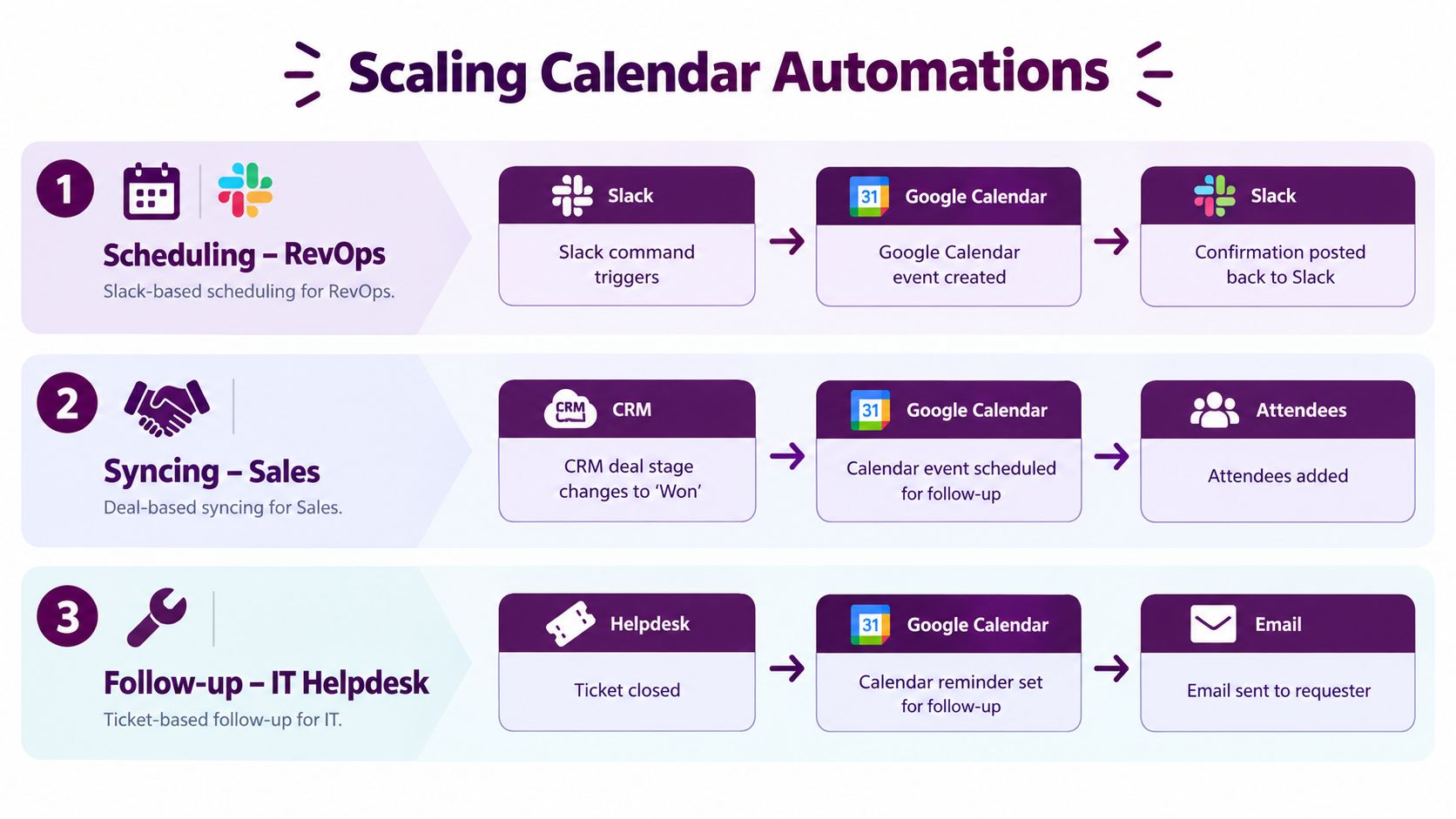
Scheduling for RevOps
A RevOps scheduling workflow often starts in Slack, not in Calendar. A manager asks for a deal review, an AE requests a customer call, or an SDR needs to coordinate multiple internal attendees quickly.
The scalable pattern looks like this:
- A Slack message triggers the workflow.
- The system parses the request into date, duration, timezone, and attendees.
- It checks availability.
- It creates an event on the intended calendar.
- It posts confirmation back into the same thread.
The part that matters is input normalization. Always set the timezone explicitly. Always dedupe attendees before insert. Always decide whether the event belongs on a primary calendar, a shared calendar, or both.
Failure usually appears when a human changes the event after creation. Someone drags it in Calendar, removes an attendee in Gmail, or replies from a forwarded invite. If your workflow can't reconcile those changes back to the originating request, it drifts fast.
Syncing for sales and customer handoffs
Sales teams usually ask for sync once a deal closes or reaches a milestone. They want the kickoff call, renewal review, or onboarding meeting reflected across systems.
A reliable pattern is event-driven sync with push notifications and full resource reads when details matter. Free/busy is good for availability, but it hides titles and context. That breaks conflict logic when the workflow needs to understand what the event is.
One independent analysis makes the scaling risk concrete. It notes the default 1 million queries per day project quota and points out that a free/busy lookup across a 100-person team every 5 minutes would consume 28,800 calls per day just for availability checks (Integration Atlas analysis of Google Calendar and Slack). That's why “simple sync” becomes fragile once you combine it with CRM updates, Slack notifications, and reporting.
If you need a useful analogy for content and campaign teams, TheContentMap's piece on a content publishing workflow makes a similar point in a different domain. The process only scales when ownership and state transitions are clear.
Reminder and follow-up automation for IT and support
Helpdesks and IT teams usually need post-event behavior more than event creation itself. A ticket closes. A follow-up reminder should exist for the requester or the owner. An implementation review changes time. A Slack DM should update too.
This pattern works well when it triggers from either an event update or a time-based check before the event. The automation writes the reminder state back to the event, then sends the contextual notification with a deep link to the record or meeting.
Late cancellations are where weak automations reveal themselves. If the workflow only handles the happy path, users stop trusting it after the first messy week.
The recurring failure mode is last-minute human behavior. Someone cancels outside the original system. Someone edits the title manually. Someone removes the one attendee your downstream reminder logic expected. Scalable Google Calendar automation assumes people will do all three.
Trust, Permissions, and the Invite Attack Surface
Most calendar guides treat security like a permissions checklist. That's not enough anymore, especially once an AI system reads invites and acts on what it sees.
Recent research showed that malicious instructions hidden in Google Calendar invite titles could hijack Gemini-style assistants, producing 14 indirect prompt-injection attacks across web, mobile, and Google Assistant surfaces. The researchers also rated 73% of analyzed threats as high-to-critical risk (report summarized by Forkast). If an AI coworker reads event text and can trigger downstream actions, calendar content becomes untrusted input.
Minimum permissions, maximum skepticism
The practical baseline is to separate read use cases from write use cases.
| Use Case | Required Scope | Prompt Injection Risk | Audit Fields Required |
|---|---|---|---|
| Availability checks | calendar.events.readonly or free/busy depending on design | Lower, because the workflow can avoid acting on event text | Actor, request type, response code |
| Event drafting with human approval | calendar.events | Medium, because model-generated text may include unsafe or manipulated content | Actor, generated text, attendees count, response code |
| Autonomous invite creation from AI-parsed input | calendar.events and possibly settings read access if timezone logic needs it | Higher, because external text may influence outbound actions | Actor, raw input, generated text, attendees count, response code |
| Settings-aware workflows | calendar.settings.readonly plus only the event scope you truly need | Medium, depending on whether event text is acted on | Actor, settings read, write outcome, response code |
Most workflows don't need full write access on day one. They need read access, constrained action paths, and a human checkpoint before anything customer-facing goes out.
If you're designing AI permissions at the system level, this guide on AI access control is worth reading because the same principles apply here. Calendar access should inherit the requester's actual rights, not grant a broad service identity freedom to improvise.
Defensive patterns that are worth the hassle
You don't need exotic security engineering to improve this. You need discipline.
- Strip risky formatting: Remove or normalize HTML and rich text before passing invite bodies into a model.
- Treat external content as hostile: Don't let external attendee text directly trigger writes, messages, or escalations.
- Gate sensitive actions: Require explicit human approval before an AI sends a new invite, changes attendees, or reschedules customer meetings.
- Log model output before writes: If the AI generated the title, description, or recommendation, keep that record.
A calendar invite is no longer just a meeting container. In an AI-connected stack, it can become an instruction payload.
That changes how you should think about trust. Calendar automation isn't only about moving events between tools. It's about controlling how much authority a workflow gets when event content can come from outside your company.
Error Handling and Reliability Patterns
Most Google Calendar failures aren't dramatic. They're quiet. A sync falls behind, retries create duplicates, or one user gets throttled while the project still looks healthy.
Google's error guidance is clear about what you'll see. Quota overruns return 403 or 429 errors with reasons such as rateLimitExceeded, and Google recommends truncated exponential backoff plus quota-aware design like domain-wide delegation with the quotaUser parameter when a single service account acts for many users (Google Calendar API error guidance).
A good quota design also starts with this operational fact: project-level quota increases won't solve per-user or burst-rate throttling. If your workflow spikes, you need concurrency control, deduplication, and backoff. More quota won't rescue sloppy traffic shaping.
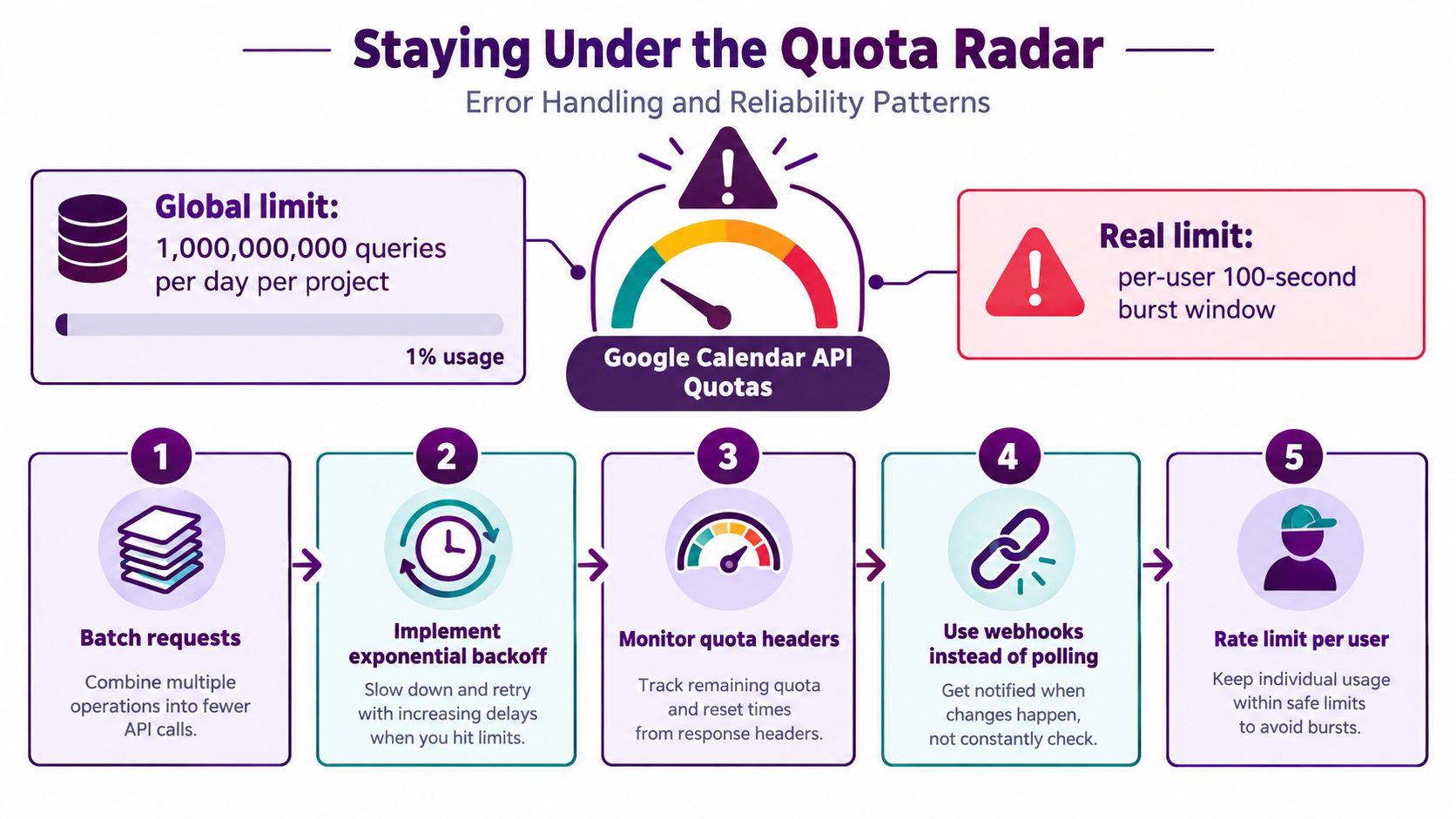
The retry playbook that usually works
When a write fails, don't hammer the API. Queue it, retry with backoff, and make sure the retry can't create a second event.
Use patterns like these:
- Backoff with jitter: Spread retries so a burst of failures doesn't become a second burst.
- Respect server signals: If a response includes retry timing, honor it.
- Serialize writes per calendar user: This reduces avoidable collisions.
- Deduplicate requests: If two systems ask for the same event creation, collapse them before write.
For teams that want a quick walkthrough of quota behavior in plain language, this video is worth a watch.
<iframe width="100%" style="aspect-ratio: 16 / 9;" src="https://www.youtube.com/embed/cVIGICXp9Ws" frameborder="0" allow="autoplay; encrypted-media" allowfullscreen></iframe>Idempotency and drift matter more than speed
The most valuable reliability feature in calendar automation is often idempotency. If a trigger replays, the same logical action should map to the same event, not create a duplicate.
Practical implementations usually derive a deterministic external key from the source system and source record, then store that mapping with the Google event identifier. The exact format matters less than consistency.
Drift detection is the second layer. Run a scheduled reconciliation that compares last-known state to current state and quarantines suspicious duplicates instead of deleting them. Cleanup feels elegant until it removes the one event a human intentionally edited.
Reliable calendar automation doesn't mean “never fails.” It means failures are visible, recoverable, and boring.
Adoption Checklist and Where AI Coworkers Fit
Once the fundamentals are right, adoption becomes a rollout problem. Teams don't need a grand transformation plan. They need a checklist that engineering, IT, and ops can execute.
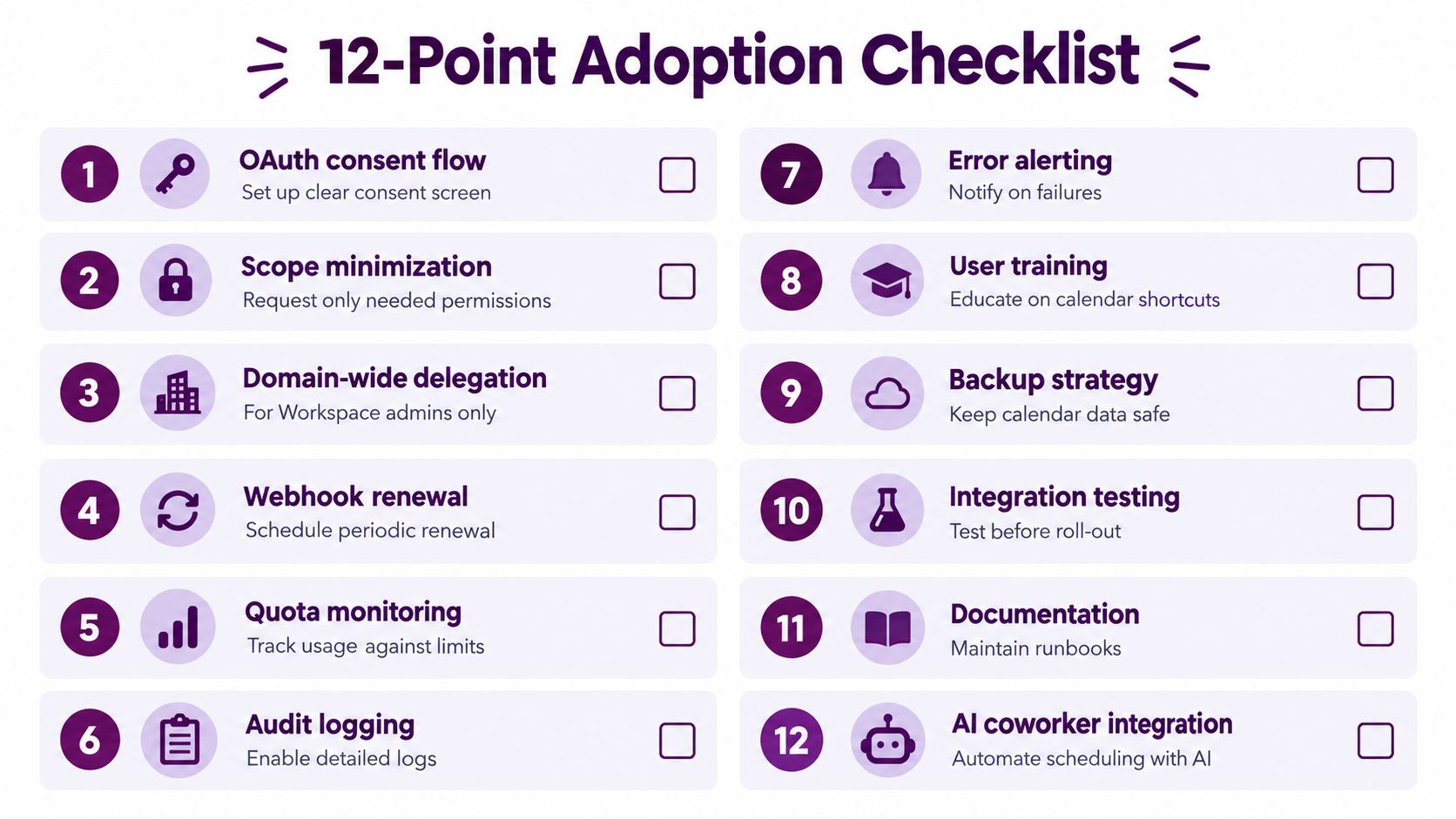
The checklist to hand your team
- Set up the OAuth consent flow: Make sure users know what the workflow can read and write.
- Minimize scopes: Start read-only unless writes are required.
- Define source-of-truth rules: Decide whether Calendar, the CRM, Slack, or a support tool wins conflicts.
- Use queue-backed writes: Don't let every trigger hit Calendar directly.
- Store sync state: Track tokens and event mappings persistently.
- Renew webhooks on schedule: Push-based designs fail if you skip this.
- Monitor quota and throttling events: Track usage before users notice breakage.
- Log every write action: Keep actor, request, result, and generated text where relevant.
- Add alerting for duplicate spikes: Duplicates are an early warning sign.
- Test late edits and cancellations: Humans don't stay on the happy path.
- Document fallback steps: Someone should know how to recover a broken sync manually.
- Review AI permissions separately: Reading event text is different from acting on it.
Where AI coworkers change the equation
AI coworkers are changing Google Calendar automation because they shift the trigger from forms and field updates to natural language inside Slack. Instead of only moving events between systems, they can draft holds, negotiate slots, summarize what changed, and post the result back where the team is already working.
That also changes the bottleneck. The hard part becomes permission scoping, action constraints, and vendor trust questions. Ask where event content is stored, who can read invite bodies, whether generated text is logged, and how the system limits actions when it encounters untrusted input.
The teams that get this right don't chase the flashiest demo. They build a calendar layer that stays dependable when usage grows and stays safe when AI starts reading more than availability windows.
If your team wants calendar automation to happen where work already happens, Supercenter offers AI coworkers that live inside Slack, act across connected tools, and keep a replayable audit trail of what they did. That's useful when meeting creation, follow-up, and cross-tool updates start from a real conversation instead of a rigid form. You can see how it works at Supercenter.
- google calendar automation
- calendar api
- zapier workflows
- slack automation
- ai coworker